
API tokens
An API token is the password Power BI uses to read your data. One token works for all of your datasources. Most people need two: one for Power BI Desktop and one for the Power BI Service.
Create a token
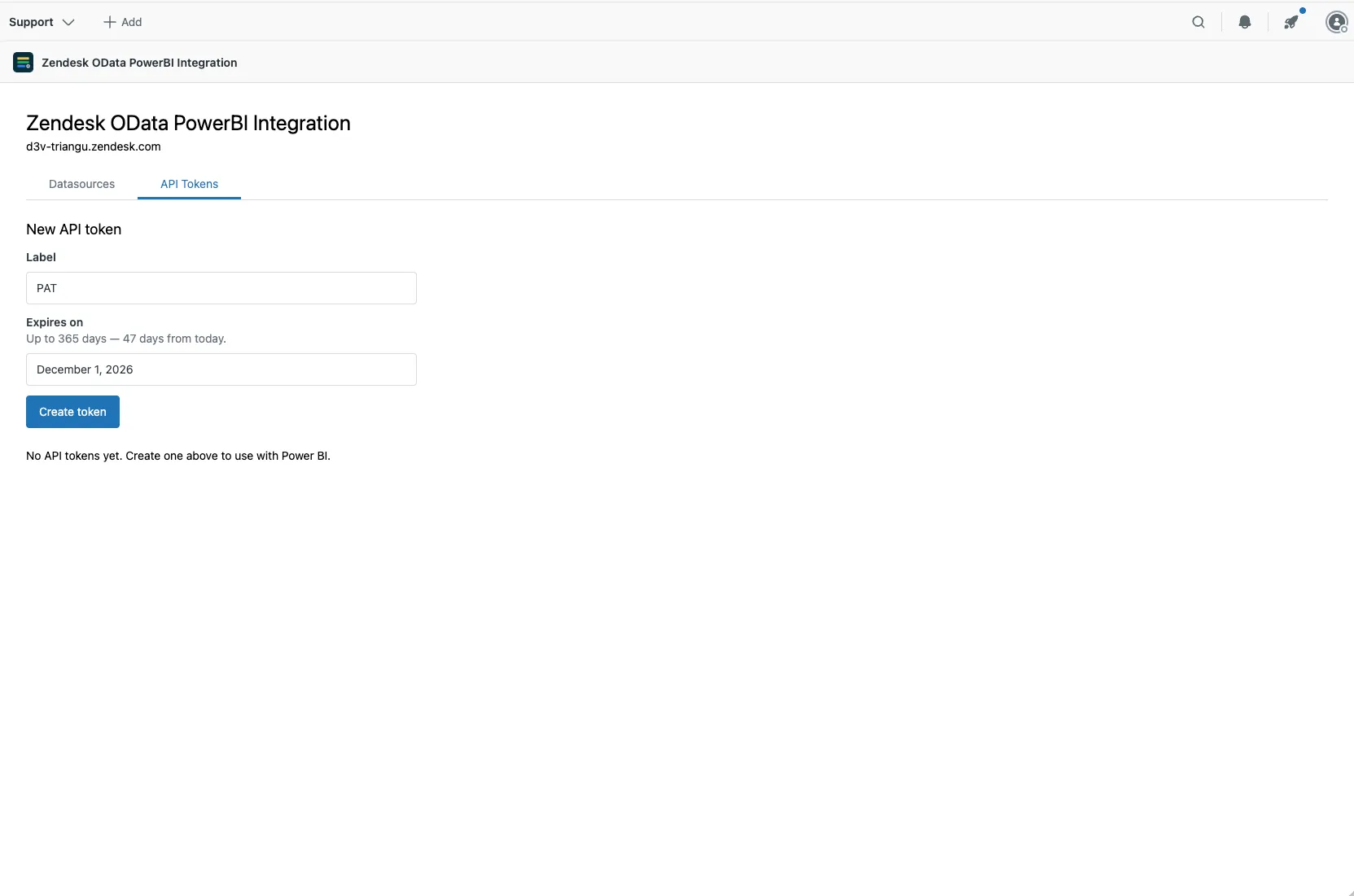
Section titled “Create a token”- Open the API Tokens tab.
- Enter a Label that says where you’ll use it, such as Power BI Desktop.
- Choose when it expires (see below).
- Select Create token.
The token appears at the top of the page. Copy it now. It is shown only once, and we can’t show it to you again. If you lose it, just create a new one.
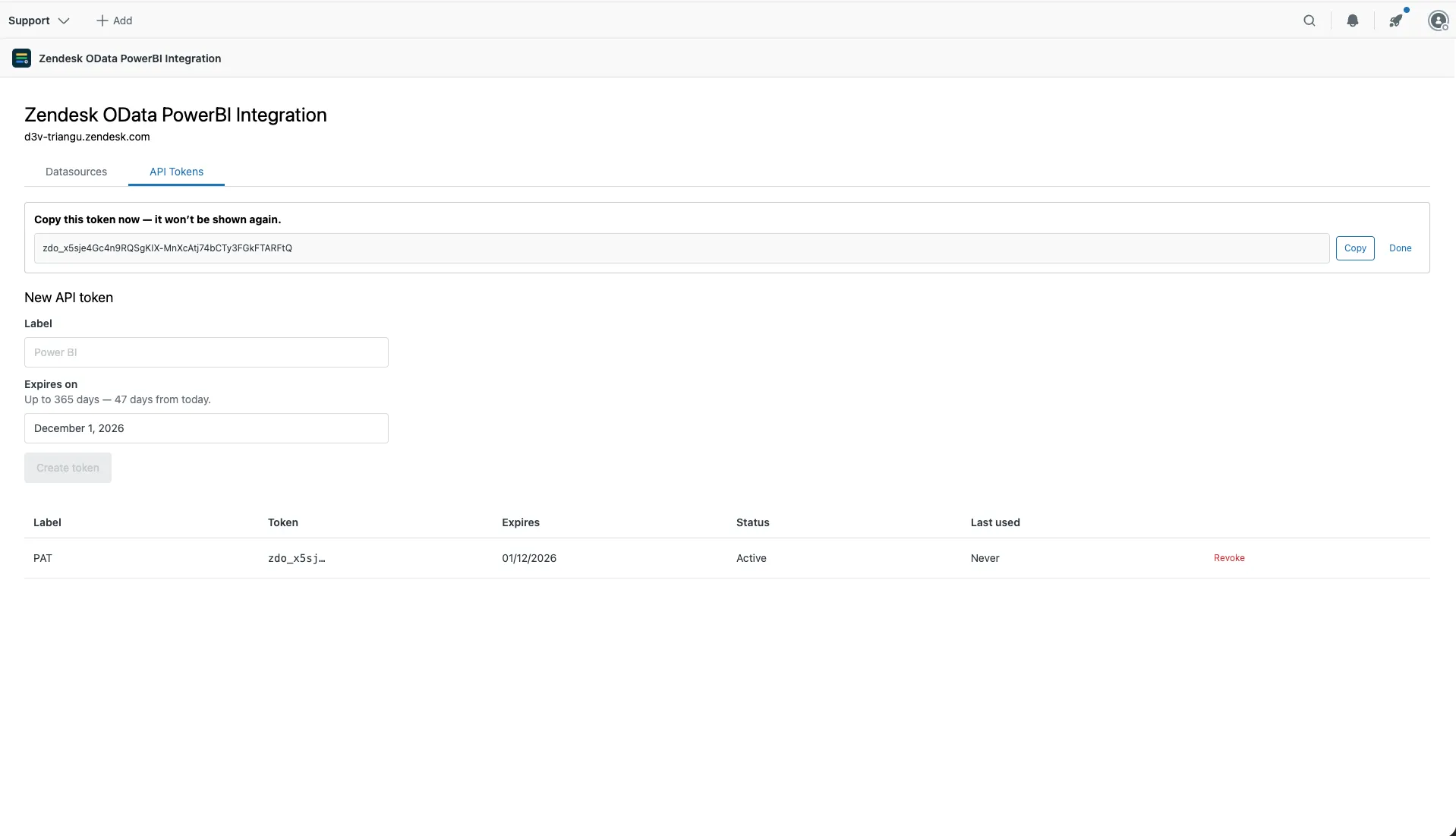
Tokens start with zdo_. In Power BI, sign in with Basic, user name export,
and the token as the password. See
Load data into Power BI.
Expiry
Section titled “Expiry”| Your Zendesk role | How long a token lasts |
|---|---|
| Admin | You choose: from 1 day to 1 year |
| Agent or custom role | 30 days |
When a token expires, every report that uses it stops refreshing. Before that date, create a new token and put it into Power BI Desktop and the Power BI Service. See Replacing the token and When the token changes.
The token list
Section titled “The token list”For each token you created, the list shows:
- Token: its first few characters, so you can tell tokens apart.
- Expires: the date it stops working.
- Status: Active, Expired or Revoked.
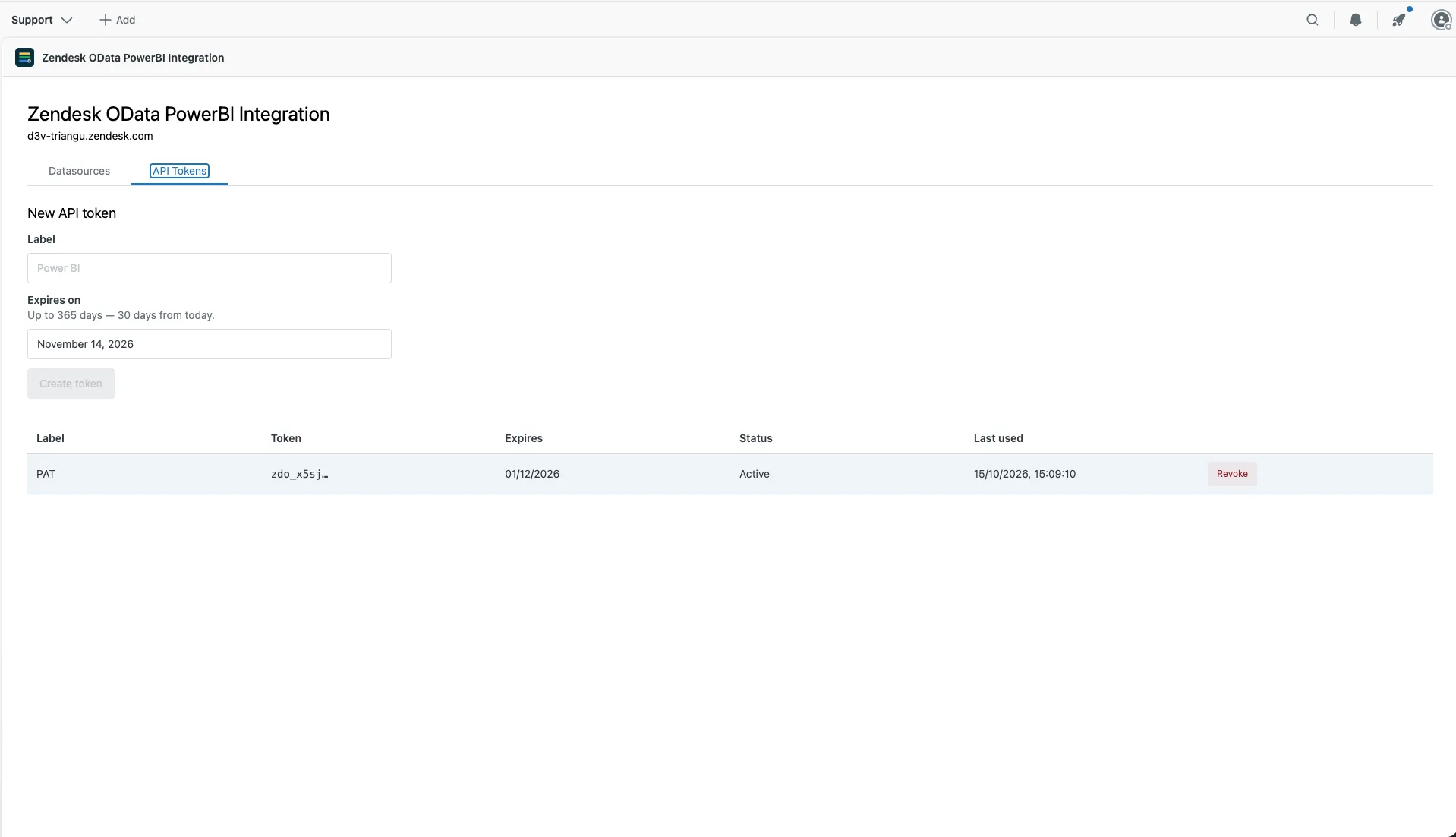
- Last used: when Power BI last read data with it. Never means it hasn’t been used yet.
Revoke a token
Section titled “Revoke a token”Select Revoke next to a token, and it stops working right away. Revoke tokens you no longer need, and revoke a token immediately if someone else may have seen it.
With an expired or revoked token, Power BI shows a “not found” error, the same one it shows for a wrong feed URL. If a report that used to work suddenly says “not found”, check the token first.