
Load data into Power BI
Before you start
Section titled “Before you start”You need two things from the app in Zendesk:
- A feed URL. On the Datasources tab, select Copy next to the datasource. See Datasources.
- An API token. Create one on the API Tokens tab and copy it straight away. It’s shown only once. See API tokens.
-
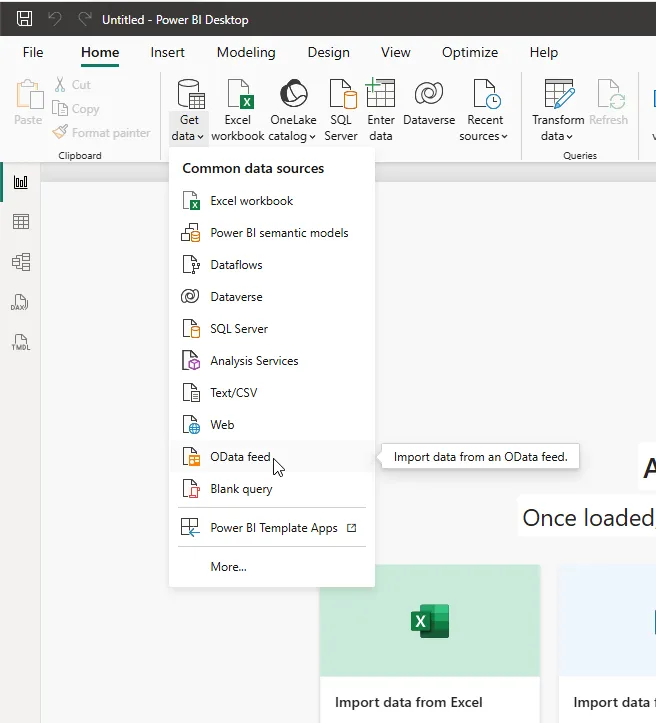
Open Power BI Desktop and select Get data → OData feed.
-
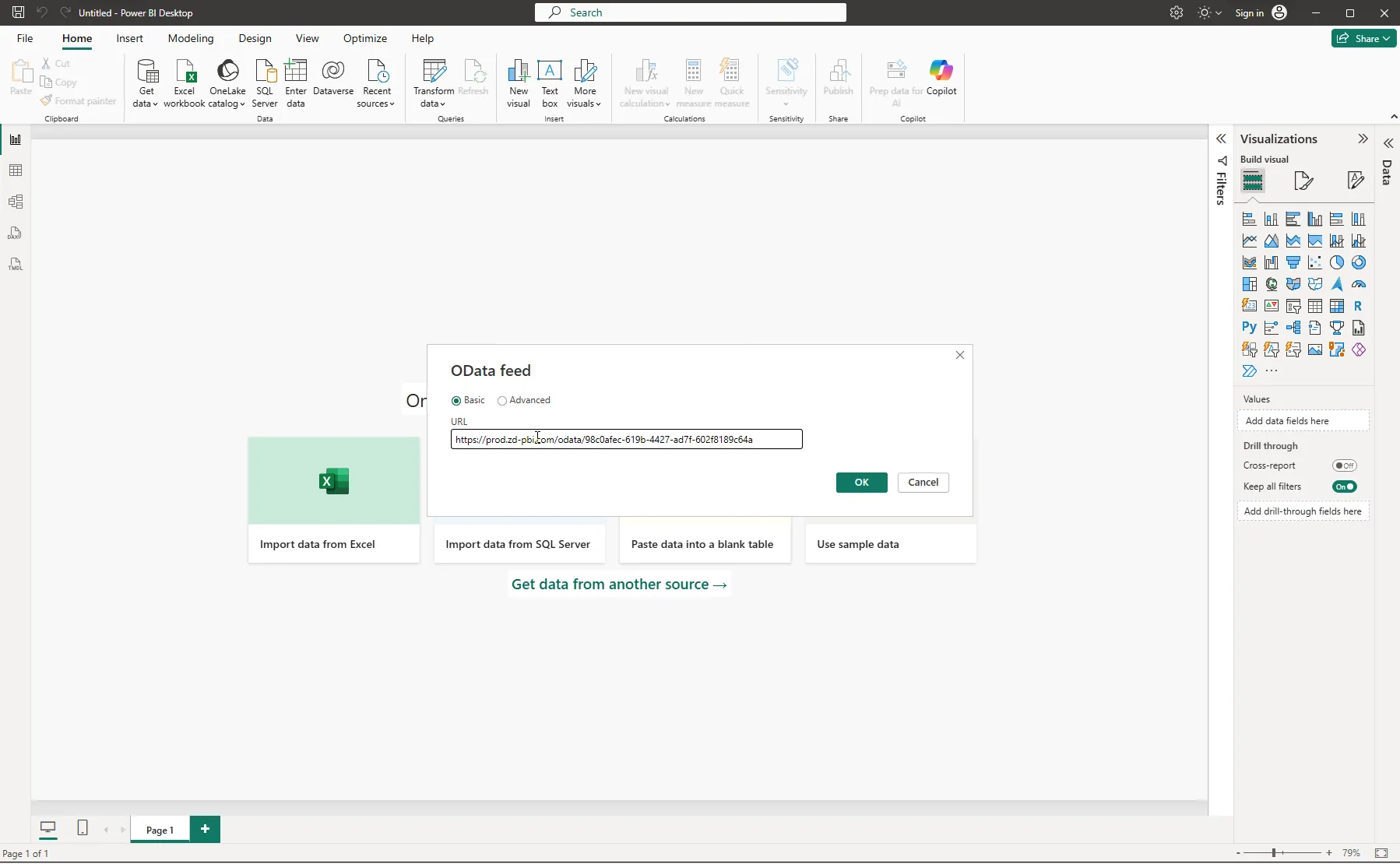
Paste the feed URL into URL and select OK.
-
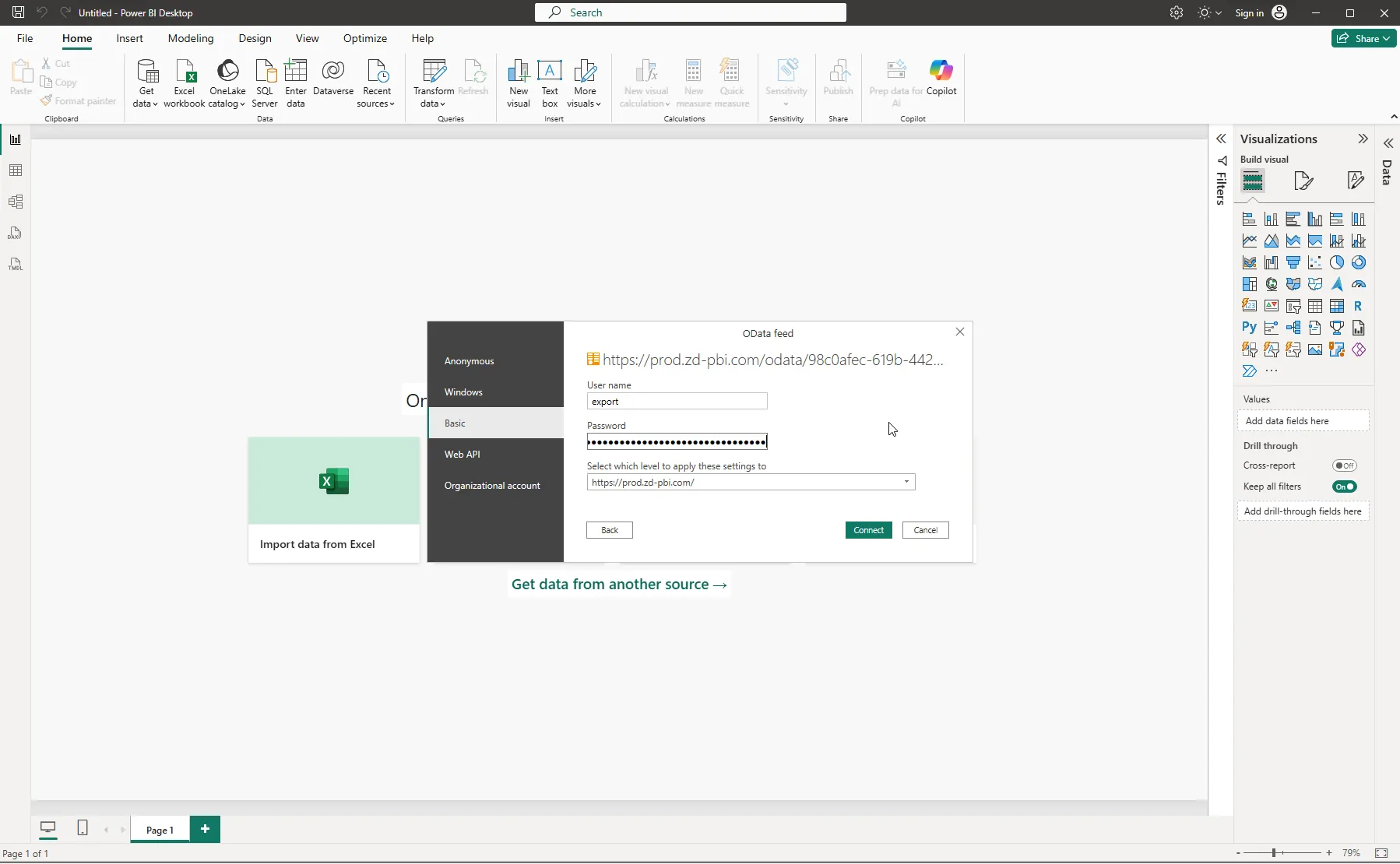
Power BI asks how to sign in. On the left, select Basic.
-
In User name, type
export. -
In Password, paste your API token. It starts with
zdo_. -
In Select which level to apply these settings to, choose the shortest address in the list. Then one token works for all your datasources, and Power BI won’t ask again for each new feed URL.
-
Select Connect.
-
Tick the tables you need and select Load. To clean up the data first, select Transform Data instead.
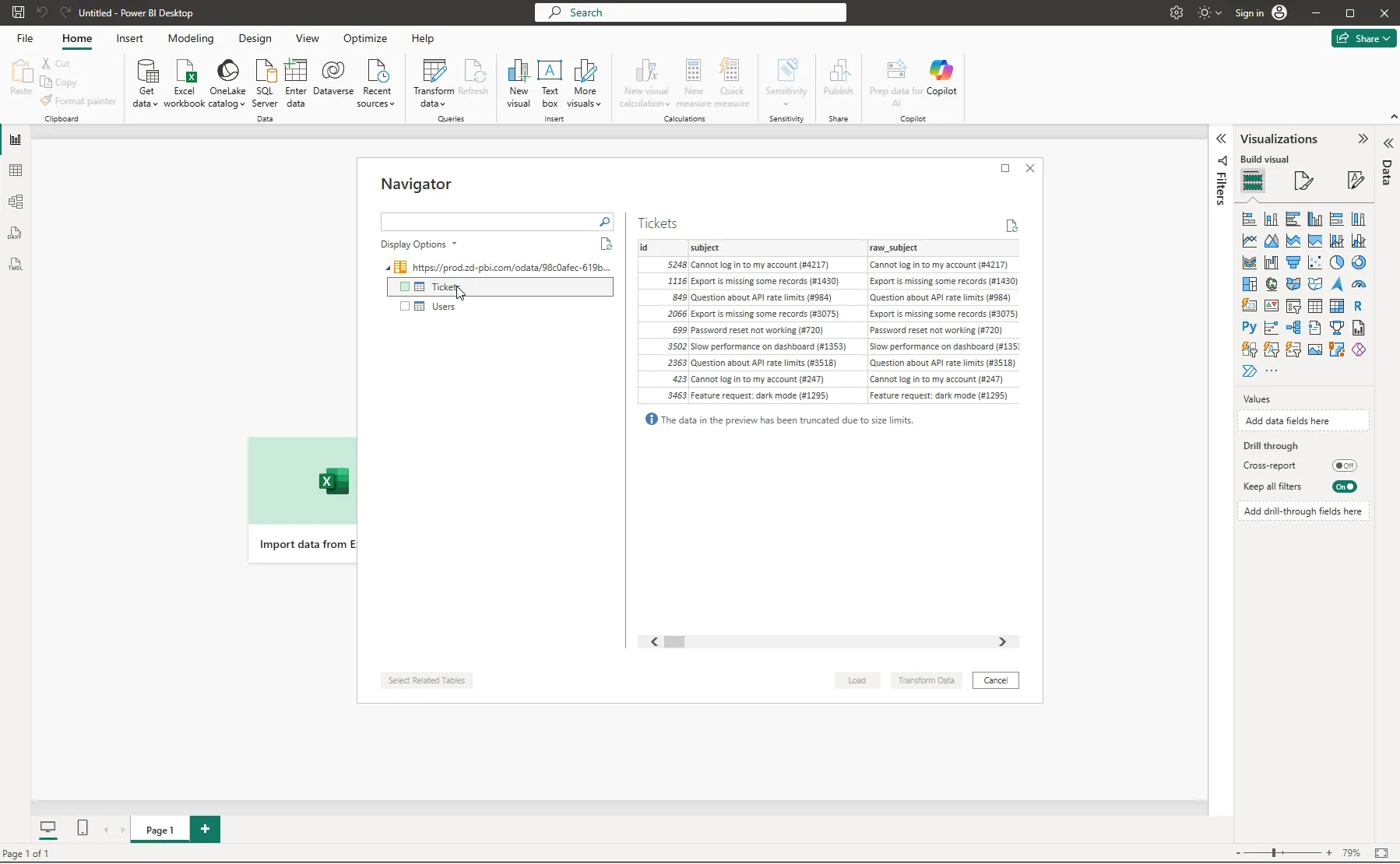
Power BI now loads all the rows. The preview in step 8 shows only the first few, but Load reads everything, so the first load of a large Zendesk account can take a few minutes.
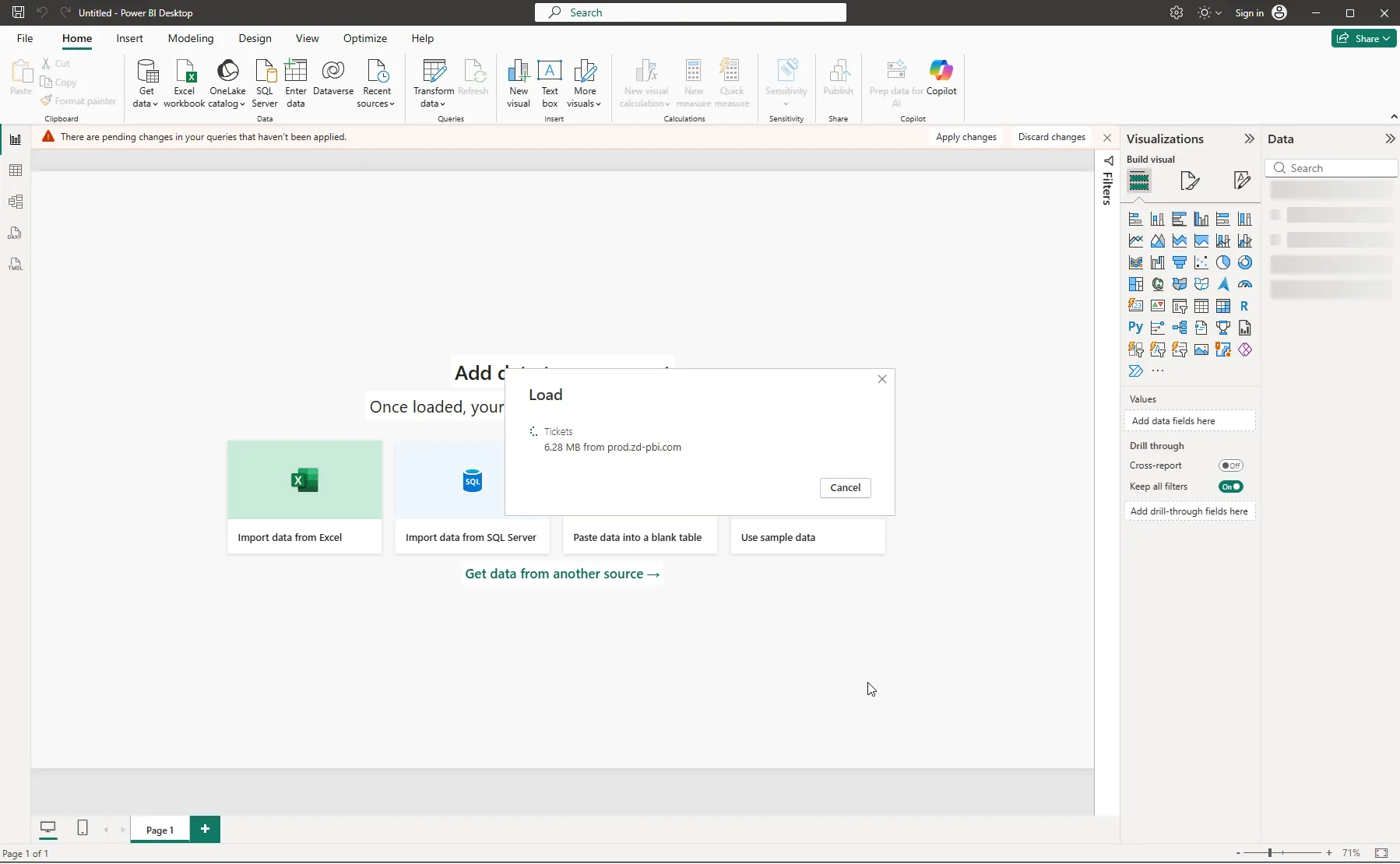
You can now build charts and dashboards on your Zendesk data. To start from a finished report instead of a blank page, use the report template. To keep the report up to date on its own, set up a scheduled refresh.
All lowercase, nothing else. Your Zendesk email or user name won’t work, and Power BI’s error message won’t tell you why.
In step 6, choose the full feed URL instead of the shortest address, and use a separate API token for each Zendesk account. Otherwise Power BI sends one account’s token to the other account’s feeds, and they fail.
Replacing the token
Section titled “Replacing the token”Power BI remembers the token. When it expires or you revoke it, refreshes fail until you enter a new one:
- In Power BI Desktop, select File → Options and settings → Data source settings.
- Select the feed’s address, then Edit Permissions.
- Under Credentials, select Edit, paste the new token and select Save.
If you published the report, update the token in the Power BI Service too. See Scheduled refresh.
Power BI saved the feed with the wrong sign-in method. In Data source settings, select the feed’s address, select Clear Permissions, and connect again.