
Install the app
This page is for Zendesk admins. You install the app once for the whole Zendesk account. After that, each agent who wants reports connects their own account.
Install
Section titled “Install”- Open the app’s page on the Zendesk Marketplace. You can also get there from Zendesk: Admin Center → Apps and integrations → Zendesk Support apps → Zendesk Marketplace, then search for Zendesk OData PowerBI Integration.
- Select Install. If you manage more than one Zendesk account, choose the one to install it on.
- Zendesk shows the price: $50 a month for the whole Zendesk account, however many agents you have. Enter your billing details and confirm.
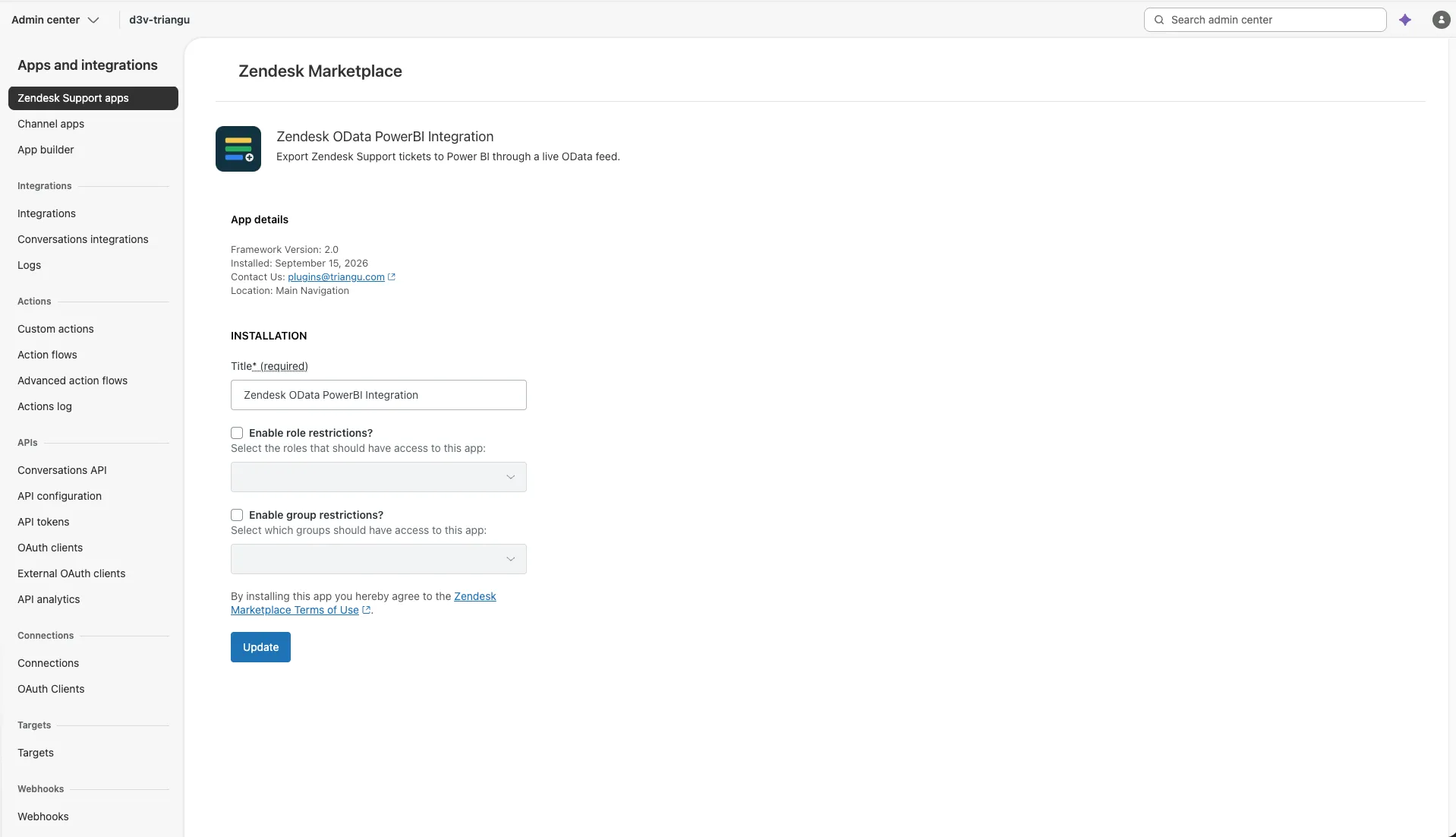
- Optional. In Title, change the name agents see for the app.
- Optional. Choose who can see the app. By default, every agent can.
- Turn on Enable role restrictions and pick the roles that should see it.
- Turn on Enable group restrictions and pick the groups that should see it.
- Select Install.
The app now appears under Currently installed, and agents who are allowed to use it see its icon in the left navigation bar of Zendesk Support.
Change who can see the app
Section titled “Change who can see the app”- In Zendesk, open Admin Center → Apps and integrations → Zendesk Support apps.
- Find Zendesk OData PowerBI Integration, select the gear icon, then Change settings.
- Change the role or group restrictions.
- Select Update.
Hiding the app from someone doesn’t stop the Power BI reports they already set up. Those use API tokens. To stop them, the agent revokes their tokens on the API Tokens tab, or you can ask us to delete their connection.
Disable or uninstall
Section titled “Disable or uninstall”- In Zendesk, open Admin Center → Apps and integrations → Zendesk Support apps.
- Find Zendesk OData PowerBI Integration and select the gear icon.
- Select Disable to hide the app for now, or Uninstall to remove it.
You can turn a disabled app back on at any time, with its settings as they were.
Disabling or uninstalling removes the app from Zendesk, but it doesn’t delete the datasources and tokens your agents created, and reports that already use them can keep refreshing. To stop all feeds and delete everything we store for your account, email plugins@triangu.com. See Data handling.