Connect your account
Everyone who wants to build reports does this once, for themselves. Your datasources and API tokens are personal: colleagues don’t see yours, and you don’t see theirs.
-
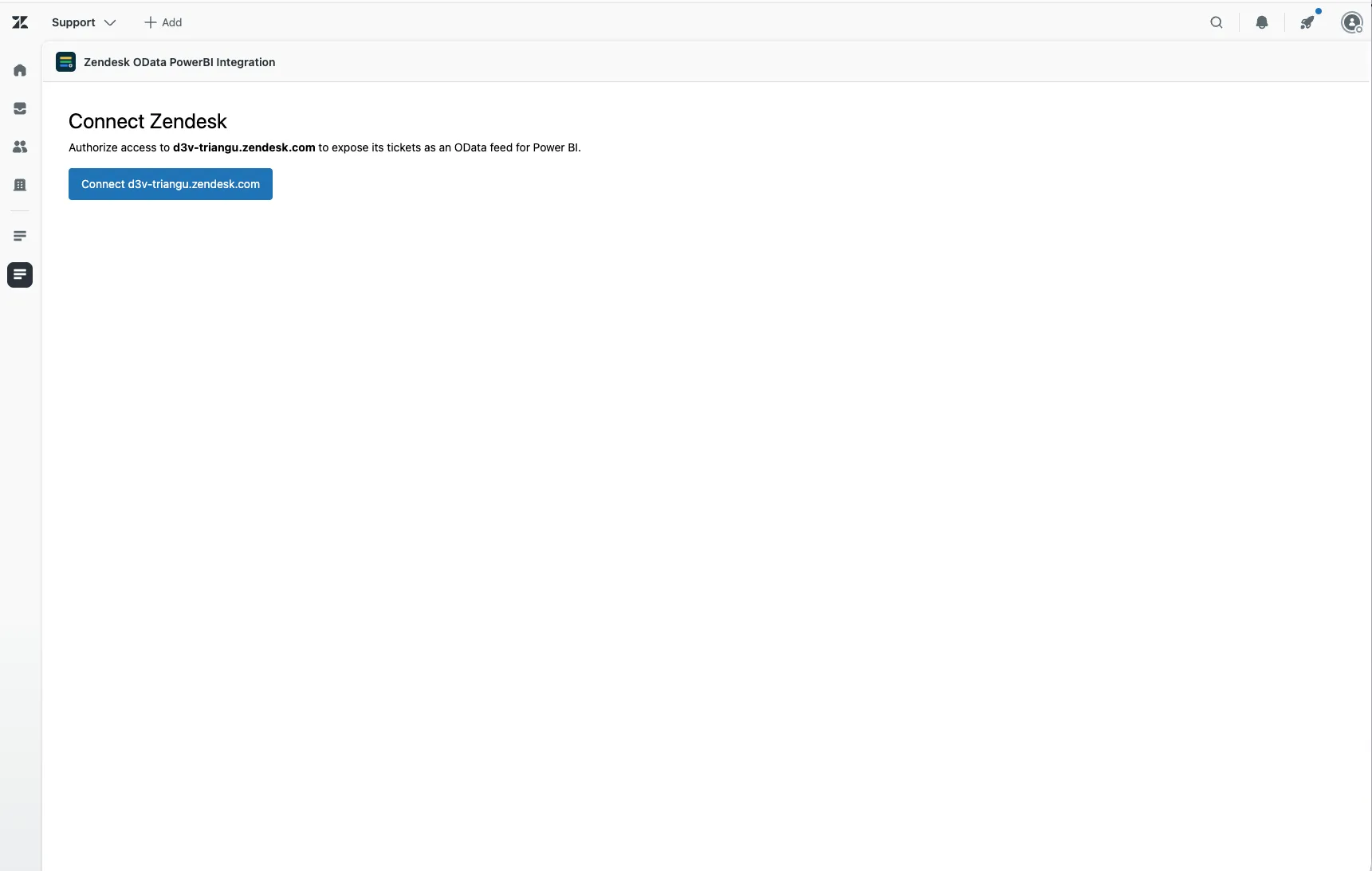
In Zendesk Support, select the app’s icon in the left navigation bar.
-
Select Connect yourcompany.zendesk.com.
-
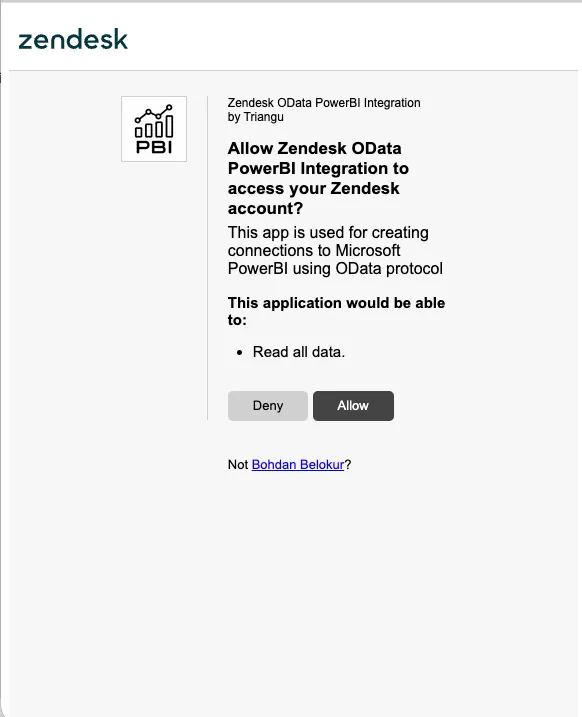
Zendesk opens a small window asking whether the app may access your account. Select Allow.
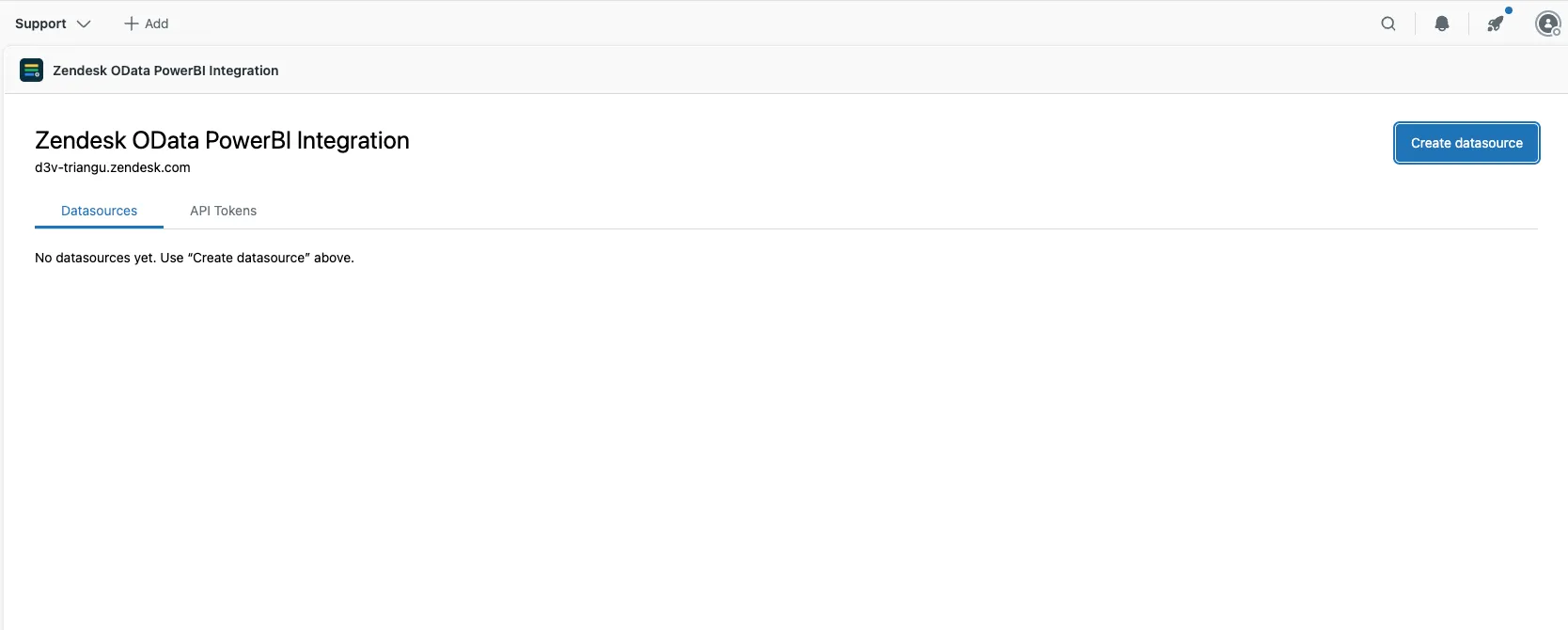
That’s it. The app opens on the Datasources tab, ready for your first datasource.
Nothing happens when you select Connect?
Your browser probably blocked the window. Allow pop-ups for your Zendesk address and try again.
Good to know
Section titled “Good to know”- The app only reads. It asks Zendesk for read access and can’t create, change or delete anything.
- You see what you can see in Zendesk. If your role only lets you see some groups or organizations, your reports include only those tickets. An admin with the same datasource gets more.
- The app may ask you to connect again about once a day. That only affects the app itself. Your Power BI reports keep working, because they use API tokens.